









The SlotPesa mobile application brings the main betting platform directly to your Android smartphone. Players in Tanzania can access sports betting, live matches, and casino games without opening a browser each time. The app is distributed as an APK file, so it is downloaded and installed manually rather than through the Google Play Store. This guide covers the process from downloading the file to solving common installation problems.
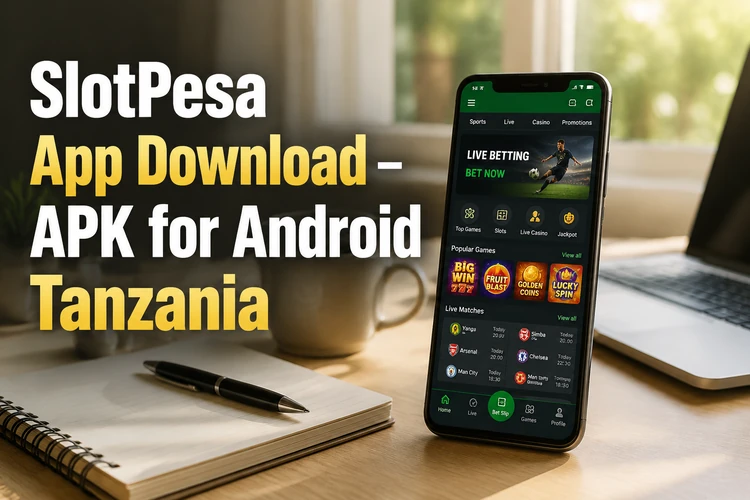
Whether you already have an account or plan to register, the mobile version is arranged for touch controls and smaller screens. You can place bets, check results, review your balance, and enable notifications for selected account or match events.
Why Choose SlotPesa App
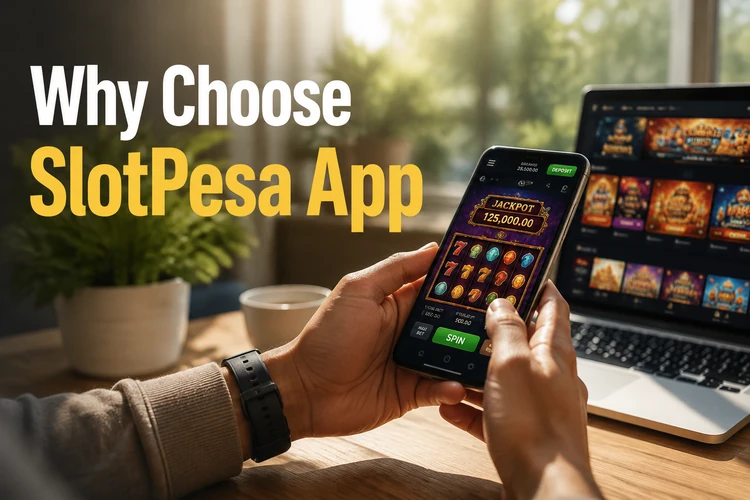
Mobile access lets you check markets and account details while away from a computer. The interface uses larger controls and shorter menus than a standard desktop layout, which makes it easier to use on most smartphones. Once installed, you can open the app from its icon instead of entering a web address and waiting for a browser page to load.
Notifications are optional, but they can be useful for bet settlement updates, selected match events, or account activity. They can be turned off later in Android settings. A stable connection still matters: the app may open without one, but odds, live markets, balances, and transactions require communication with the betting service.
SlotPesa APK Explained
APK stands for Android Package Kit. It is the file format Android uses to distribute and install applications. When an app comes from the Play Store, the store manages this file in the background. With a betting application that is distributed directly, you download the APK and start the installation yourself.
Manual installation is useful when an app is not distributed through the Play Store in a particular market. Android normally blocks files from unknown sources until you grant permission to the browser or file manager that opened the file. This permission can be removed after installation, and the file should only be obtained from the operator’s official website.
How to Download SlotPesa APK
Use your Android browser to open the official SlotPesa website and find the app or mobile section. Start the download there, then wait until the file finishes before opening it. Do not rename the file or install several copies at once. A partial download can cause an installation error even when the phone has enough storage.
- Step 1: Download the current APK file from the official website.
- Step 2: Open Android settings and allow installations for the browser or file manager you used.
- Step 3: Open the completed file from Downloads and confirm the installation prompts.
- Step 4: Launch the app and log in with your existing credentials.
New customers can use the registration option in the app if it is available for their account region. Existing account details, balance information, and betting history are normally connected to the account rather than stored only on the phone.
Main Features
The sports section can include football, basketball, tennis, and other markets available to the account. You can compare scheduled events, review odds, and add selections to a bet slip. Live betting changes as a match progresses, so check the price and market status immediately before confirming a wager.
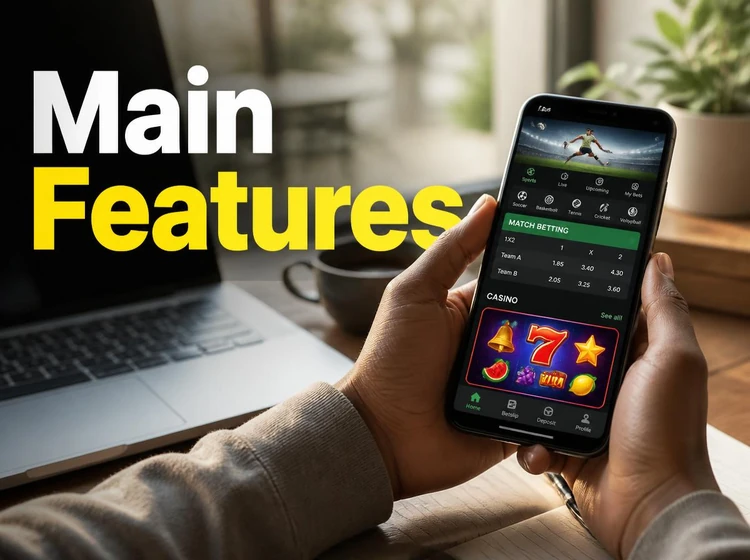
The casino area may provide slots, table games, and live dealer content, depending on what is enabled for the platform and location. Account tools can show your balance, transaction history, settled bets, and withdrawal requests. Payment timing and available methods depend on the account and the selected service, so check the confirmation screen before completing a transaction.
Android Requirements
The draft requirement for the app is Android 5.0 or later, with at least 100 MB of free storage for the application and its cache. Keep additional space available because Android may need room to unpack the APK and complete an update. Mobile data or Wi-Fi is required for login, odds, live markets, games, and account transactions; 4G generally provides a smoother experience than 3G for live content.
| Requirement | Practical guidance |
|---|---|
| Operating system | Android 5.0 or later |
| Storage | At least 100 MB free, with extra space for updates |
| Connection | Working mobile data or Wi-Fi |
| Permissions | Allow installation for the browser or file manager used |
Network access is necessary for the service to communicate with its servers. Notifications and storage-related permissions can be reviewed in Android settings and should be limited to what the app needs. Avoid granting unrelated permissions if they are requested.
Updating the App
New builds may fix errors, improve performance, or adjust compatibility with Android. When an update is offered, download the new APK from the official source and install it over the existing version. This normally keeps your account and history because those details are linked to your login, but avoid deleting the existing app unless support instructs you to do so.
Before updating, finish any pending transaction, use a reliable connection, and keep enough battery and storage available. If an update fails, restart the phone and try again with a fresh download rather than using a damaged file.
Common Installation Problems
If Android says the installation is blocked, open settings for the browser or file manager that launched the APK and enable permission to install unknown apps. On Android 8.0 and newer, this permission is usually granted separately to each source application. Disable it again after installation if you do not plan to use it.
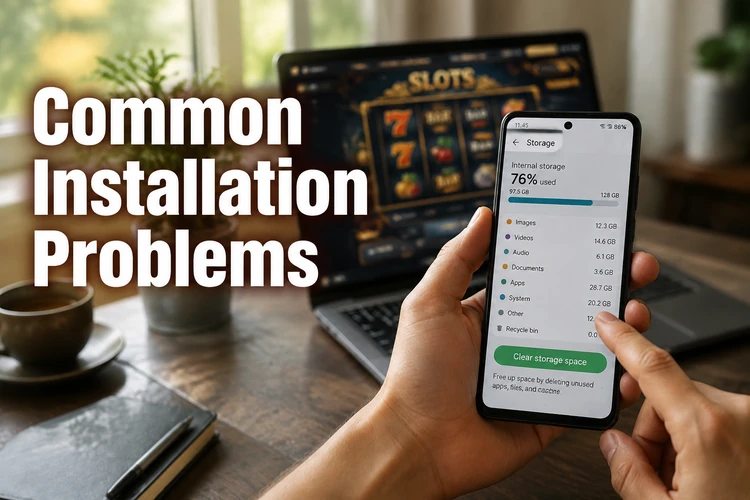
For an insufficient-storage message, remove unused downloads, clear unnecessary cache files, or move photos and videos elsewhere. Leave at least 200 MB free so the installer has room to unpack the application. If the file is incomplete, delete it and download a fresh copy rather than repeatedly opening the same file.
A compatibility error usually means the Android version is too old or the device does not meet the application’s requirements. Check the version under About Phone and install available system updates. If the phone cannot be updated, use the mobile website instead of forcing an APK installation.
If the app installs but closes immediately, restart the phone and check whether the download came from the official website. A corrupted file, low storage, or an outdated system can cause crashes. Clear the app cache only after confirming that you know your login details, then contact support if the problem continues.
Frequently Asked Questions
Yes. The APK can be downloaded without a separate app charge. Betting and casino play involve your account balance, so review the stake and transaction details before confirming any activity.
Download the file from the official website, allow installations for the browser or file manager that opened it, and tap the completed download. Follow Android’s prompts to finish the installation.
Yes. A new APK can normally be installed over the existing version. This should preserve the app installation and account data, although you should keep your login details available in case the session expires.
Use only the file provided through the official SlotPesa website and avoid modified copies from file-sharing sites. Check the source, keep Android updated, review permissions, and remove installation permission for the browser afterward if you do not need it.
The stated requirement is Android 5.0 or higher. Check the software version under About Phone and keep free storage available for both the initial installation and later updates.
Yes. Use the same login details as on the website. Your account information, balance, and betting history are associated with the account, not only with the device. If you cannot log in, verify the credentials and use the account recovery option.